
Drive to Point
Hold a button and the robot drives itself to one spot on the field, position and heading together. Three PID controllers turn the gap between the current pose and the target pose into a chassis velocity. Accuracy comes from odometry.
- Swerve Calibration. The command is only as accurate as the pose it subtracts from.
- Coroutines, for a command body that loops and yields, and
whileTruefrom Writing Commands. - Logging. The last check below is a graph.
Every meter the drivetrain has covered so far, a human drove. Hold A for the field origin. Hold B for (3 m, 2 m) facing 180°.
The target pose
A Pose2d bundles three numbers: X in meters, Y in meters, and a Rotation2d heading. The robot's current position and the place you are sending it are both written this way. 0° points down the field.
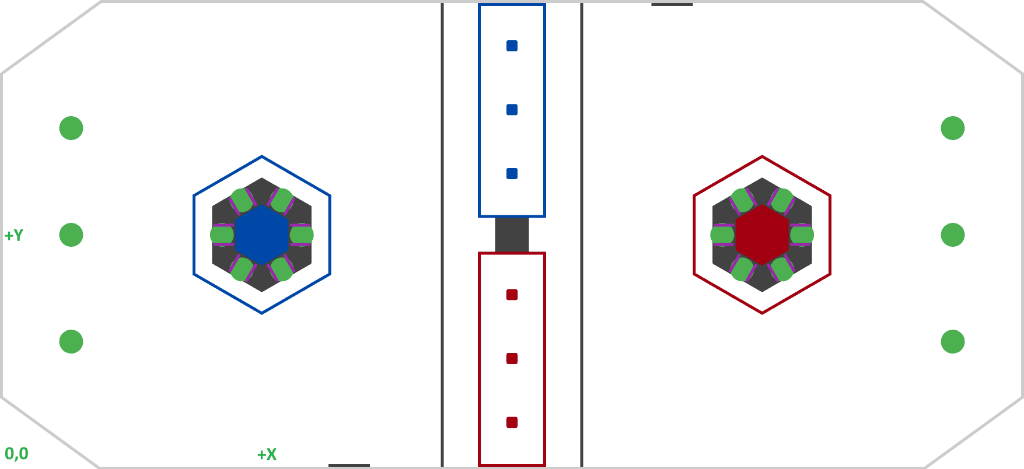
Nothing has told the robot where it is
getPose() returns whatever odometry has counted since the code started, and the left bumper re-zeroes the driver's forward, not odometry. In the simulator, holding A returns the robot to wherever it started. On a real field, without Vision correcting the pose, it sends the robot somewhere you did not intend.
Four methods to fill in
Every command so far came out of a factory: mechanism.run(...) or Command.sequence(...), one expression with .named(...) on the end. This one does four things, and only one of them repeats.
public class DriveToPoint extends ClassicCommand { public DriveToPoint(DriveMechanism drivetrain, Pose2d targetPose) { super("DriveToPoint", drivetrain); // command name + required mechanisms } @Override protected void initialize() {} // once, when the command starts @Override protected void execute() {} // every loop, while it is active @Override protected boolean isFinished() { // every loop, right after execute return false; // true = finish now } @Override protected void end(boolean interrupted) {} // once, when it ends either way}super(...) calls the constructor of the class you extended, here ClassicCommand. It takes the command name first, then every mechanism this command owns while it runs. That is where the telemetry name comes from. .named(...) belongs to the builder run(...) returns, so calling it on a finished Command will not compile.
ClassicCommand is a workshop file, not a WPILib class. It implements Command, and its coroutine body is the whole trick:
@Overridepublic final void run(Coroutine coroutine) { initialize(); while (true) { execute(); if (isFinished()) { break; } coroutine.yield(); } end(false); // natural finish} @Overridepublic final void onCancel() { end(true);}It is an ordinary coroutine body with your four methods dropped into it. onCancel() is why end(...) runs on both exits. Copy the branch's file into src/main/java/frc/robot/utils/ and leave it alone.
Build the command
One new file, commands/DriveToPoint.java. Six field declarations go in at the top, two of them plain: the drivetrain and the target pose. Three are PIDController fields with kP of 10 on X and Y and 7 on heading. The sixth is one SwerveRequest.ApplyFieldVelocity, built once and reused every loop. Copy them from the branch's file.
Three controllers, because a swerve drivetrain moves in three directions at once. Heading gets its own, so the robot turns to face the right way while still driving.
The request is blue-relative because the pose is. The joystick request uses the operator perspective, which flips on red so forward matches what the driver sees. Your controllers already work in field coordinates, and re-rotating their output would drive the robot the wrong way on one alliance. OpenLoopVoltage means no wheel PID underneath yours.
/** * @param drivetrain the swerve drive to command * @param targetPose the field pose (blue-origin) to drive to, including the goal heading */ public DriveToPoint(DriveMechanism drivetrain, Pose2d targetPose) { super("DriveToPoint", drivetrain); // command name + required mechanism this.drivetrain = drivetrain; this.targetPose = targetPose; // Wrap heading error to [-pi, pi] so the robot turns the short way around. headingController.enableContinuousInput(-Math.PI, Math.PI); }this.drivetrain = drivetrain; looks like it does nothing. It copies the parameter into the field of the same name. The this. prefix means the field on this object; the bare name means the parameter passed in. The parameter disappears when the constructor ends, and the field is what execute() reads.
enableContinuousInput tells the heading controller that its two ends are the same place, so the robot turns the short way. That controller works in radians, not degrees. X and Y get no such call. Meters do not wrap.
Then the loop. initialize() calls reset() on all three controllers, because a PIDController is a field here and remembers its error between runs.
@Override protected void execute() { Pose2d currentPose = drivetrain.getPose(); double vx = xController.calculate(currentPose.getX(), targetPose.getX()); double vy = yController.calculate(currentPose.getY(), targetPose.getY()); double omega = headingController.calculate( currentPose.getRotation().getRadians(), targetPose.getRotation().getRadians()); drivetrain.setControl(driveRequest.withVelocity(new ChassisVelocities(vx, vy, omega))); }calculate(measurement, setpoint) takes where you are, then where you want to be. With kI and kD at zero, out comes kP times the error. ChassisVelocities holds the three results: vx and vy in meters per second, omega in radians per second.
isFinished() returns false, so the command runs until the driver lets go. That keeps it out of Command.sequence(...). A sequence handed a command that never ends sticks on that leg forever, so no autonomous routine can use it.
The branch leaves the other option in a comment on that line: xController.atSetpoint() && yController.atSetpoint() && headingController.atSetpoint(). atSetpoint() asks whether the latest error is inside a tolerance. The default is 0.05, in whatever unit that controller works in: 5 cm on X and Y, 0.05 radians on heading, about 2.9°. setTolerance(...) changes it.
end(...) runs whether the command finished or something took the drivetrain away, so that is where the stop belongs: drivetrain.setControl(driveRequest.withVelocity(new ChassisVelocities())). Ending a command does not stop a motor. Teleop would forgive a missing stop, because the joystick default takes the drivetrain back and asks for zero. An autonomous OpMode has no default, and the robot would keep its last velocity.
Send zero speed, not new SwerveRequest.Idle(). Idle does nothing to the modules, so each one keeps its last request.
Two bindings go in the TeleopOpMode constructor, under the left-bumper binding already there. whileTrue, because the command never finishes on its own: release and it is canceled.
import frc.robot.commands.DriveToPoint;import org.wpilib.math.geometry.Pose2d;import org.wpilib.math.geometry.Rotation2d; // ... inside the constructor, after the seedFieldCentric binding: // Hold A or B to drive straight to a fixed spot on the field. Let go to stop. driver.a().whileTrue(new DriveToPoint(drivetrain, Pose2d.ZERO)); driver .b() .whileTrue(new DriveToPoint(drivetrain, new Pose2d(3, 2, Rotation2d.fromDegrees(180))));The gains
These three controllers are not the Slot 0 gains you tuned in Tuner X. Those run on the TalonFX itself, in rotations of one mechanism, and put out volts for one motor. These run in your code once a loop, in meters and radians, and command a velocity for the whole chassis.
So kP = 10 reads as ten meters per second of commanded speed for every meter of error. On heading, kP = 7 reads as seven radians per second for every radian. Do the arithmetic. Three meters out, execute() asks for 30 m/s, against the 4.54 m/s in TunerConstants.kSpeedAt12Volts. Nothing in the file trims it.
The robot lurches away at full power, then crawls in over the last half meter as the error shrinks. It works, and it looks bad.
10 / 10 / 7 are marked TODO
The comment in the file ends TODO: tune these for your drivetrain. Nobody measured them for your robot. On real hardware, test in a clear space and keep a hand on the disable. A gain this large turns a wrong pose into a fast wrong move.
Check your work
- Enable Teleop in full simulation, drive a few meters from where the robot started, and turn it. Now hold A: it should drive back and rotate to 0° together, not spin first and drive second.
- Keep holding A and push the left stick. Nothing should happen:
DriveToPointrequires the drivetrain, so it outranks the joystick default until you release. - Release A halfway through the trip with the sticks centered. The robot should stop, not coast on at its last speed.
- Hold B. The robot drives to (3, 2), turns to 180°, then sits on the target making small corrections for as long as you hold.
- Graph
Drivetrain/PoseandDrivetrain/TranslationSpeedMpsfor that run. X settles near 3, Y near 2, heading near 180°. Speed jumps to whatever the drivetrain can do, holds, then falls off steeply.
It drives off confidently in the wrong direction. Suspect the pose, not the gains. The robot is driving correctly toward where it believes the target is, so graph Drivetrain/Pose before touching a number. If the pose is right and it still slides sideways, check the request has ForwardPerspectiveValue.BlueAlliance.
It gets close, creeps in, and never arrives. Expected on this branch. One centimeter of error asks for 10 cm/s, and at some point the request cannot overcome friction. There is no I term to grind out the last bit.
It will not compile. Look for an old ChassisSpeeds, a .named(...) call on the new command, or a super(...) that is not the constructor's first line.
Profiled Drive to Point changes this one file and both faults go away. It plans the whole trip before the robot moves, so PID becomes a small correction and the command gets a finish line.
PR #11: 5 drive to pointCheck yourself
Which of the three PID controllers gets enableContinuousInput(-Math.PI, Math.PI), and why?
Where does the name "DriveToPoint" that shows up in telemetry come from?
Why does the stop request go in end(boolean interrupted) rather than at the bottom of execute() or after isFinished() returns true?
isFinished() returns false on this branch. What follows from that?
The drive request is built with ForwardPerspectiveValue.BlueAlliance rather than the operator perspective the joystick request uses. Why?
kP is 10 on the X controller and the target is three meters away. What velocity does execute() ask for on that axis?